Introduction
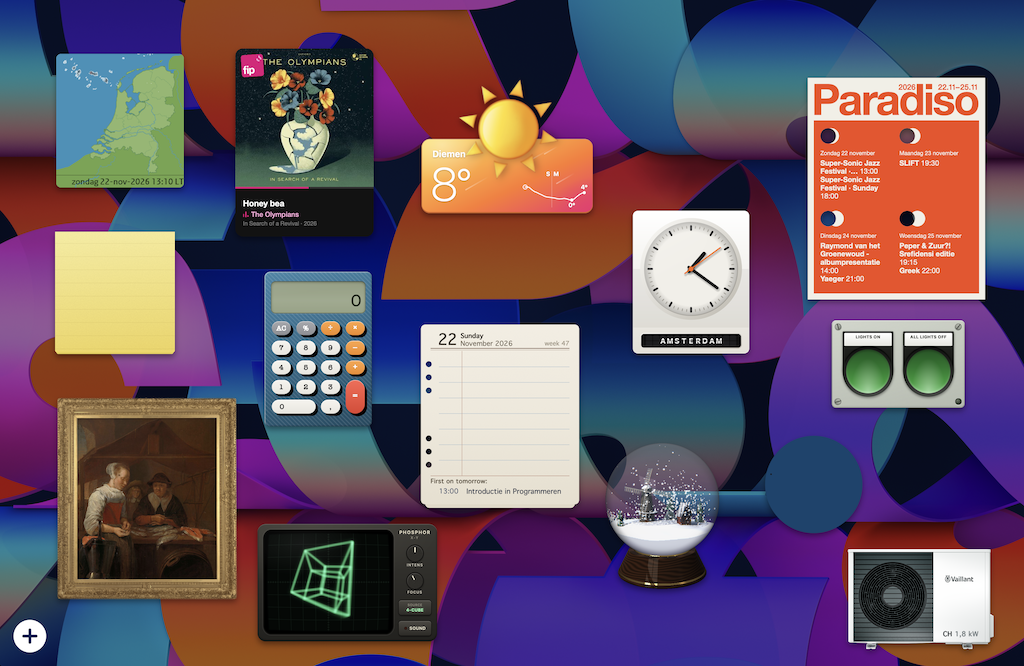
Décor brings back HTML widgets to macOS. The goal is to provide a creative layer on your computer that you control by combining widgets that you like and use. Not only widgets you download that someone else made, but also the widgets you create yourself! Widgets are heavily constrained, written in HTML, CSS and JavaScript, and writing one can be a really cool first step into understanding how programming works. Everything you run into when making a widget will improve your understanding of computing and what's hidden behind the screen. So after getting Décor up and running, we encourage you to take a look at the design guide and see if you would like to try to get your hands dirty!
Getting started
Décor runs on macOS 14 and later, on Apple silicon and Intel Macs (and it mostly runs on macOS 12 and 13, too). Download it, move Décor to your Applications folder and open it.
On first run, you will be presented with the option to grant Décor access to some of your personal data. Décor itself does not do anything with that data, but can provide the data to widgets, with some restrictions. Four widgets are automatically loaded when you start Décor for the first time. Two of those will use your data immediately if you have allowed access: your Calendar is shown, and a somewhat imprecise location is used to request a weather forecast from the Décor weather server (the location is imprecise in that it's typically more than a few km from your real location; this should generally be fine for a forecast).
For any widget that you later install in Décor, you will be presented with a list of the access it requests, so you can decide whether you want to proceed using it, or cancel. Read Permissions for more information about the restrictions for widgets on use of your data.
Décor does not have a Dock icon during normal use. Instead, it's in the menu bar, and it has a small gauge icon:

Click that icon to bring up your personal decor.
Opening and closing the decor
The easiest way to start is to press F12. The decor immediately moves in over your windows. Any applications you have open will stay put until you close the decor. Alternatively, to take just a quick look, you can press F12 and hold it: the decor is shown as you would expect, but because you kept it pressed, the decor will automatically hide when you release the F12 key. It's a tad quicker.
Troubleshooting. On many Macs pressing plain F12 actually increases the sound volume instead of showing the decor. In that case you can open it by pressing a key combination: Fn F12. On a Mac with Apple silicon (M1 or later) you can opt to use the Globe key for showing the decor: see the Settings section, below.
The decor also hides when you:
- click an empty space between the widgets,
- click the gauge in the menu bar again, or
- switch to another application.
Décor always keeps running when the decor is hidden. To save memory and processing power, widgets may reload if you haven't opened the decor for a while.
Adding widgets
Click the round + button in the bottom left corner of the the decor, or press ⌘ =. That shows the widget bar, a list of widgets that scrolls horizontally if needed. Click a widget to put it on the decor, and when the widget bar is open, you can easily arrange all widgets to your liking.
Décor includes a few widgets (we call them built-in):
| Calculator | Performs simple calculations. |
| Weather | Shows the current weather and a 24-hour forecast. |
| Clock | Shows the time for any zone. |
| Today | Shows appointments for today. |
| Sticker | Allows you to put an image on your decor. |
| Caffeine | Keeps your display awake when you turn it on. |
| Shortcuts Board | Allows you to start Shortcuts. |
| Stickies | Keeps notes for you. |
Tip: you can add multiple copies of each widget, each with its own settings.
To close the widget bar, click the button again, press ⌘ =, or click in an empty space on the decor.
Drag and drop
You can also drag widgets and pictures onto your decor. Start dragging, open the decor, and drop it. When you drag on a widget, you will be prompted to install it. And when you drag on a picture, it's turned into a sticker (click the sticker to change its border effects).
Installing new widgets
You can download widgets online, but people can also send them to you by AirDrop, Messages or mail. Widgets are usually downloaded as a zip file. Safari will unzip a download automatically and open the widget for you. Otherwise, open the zip file yourself and then double-click the widget. Décor asks whether to install it:
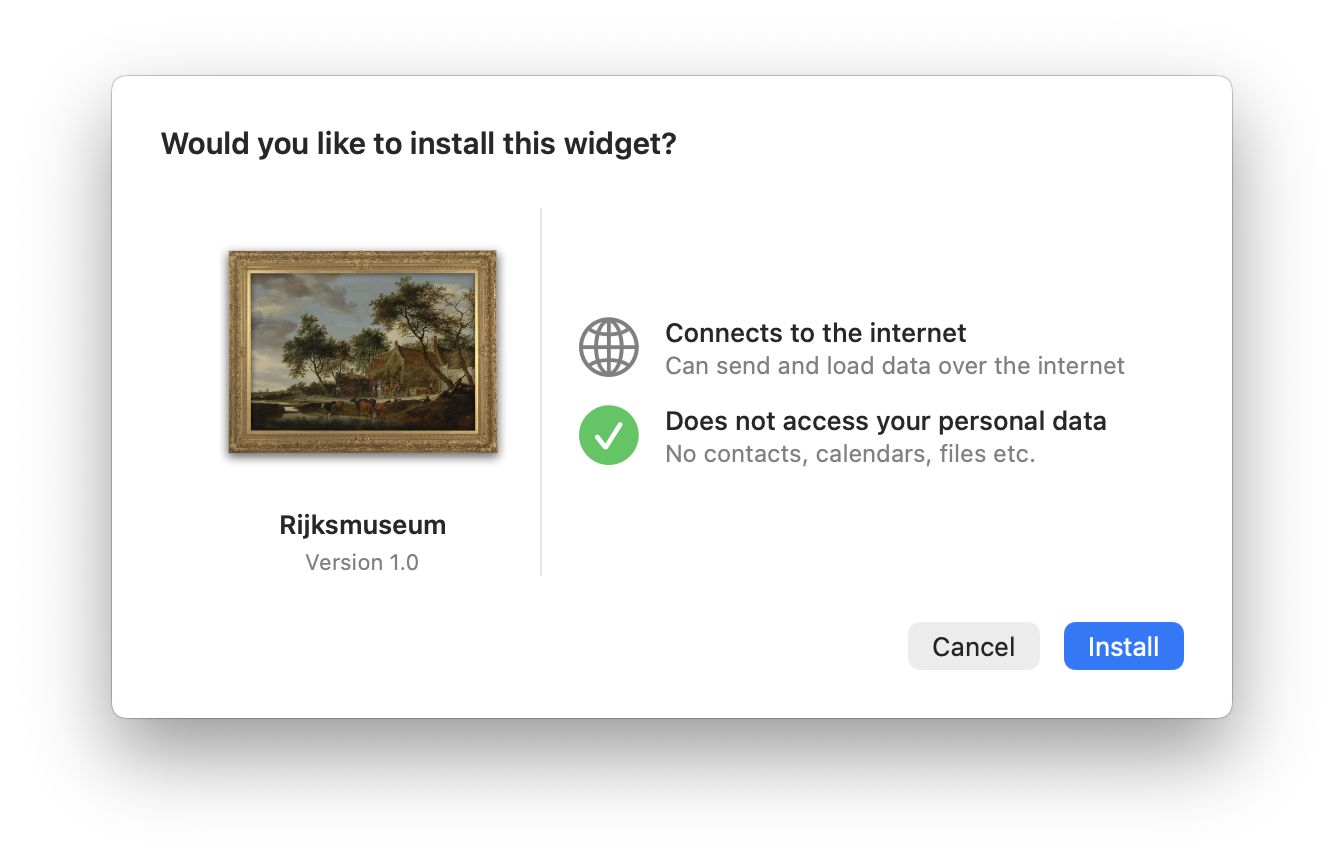
Always carefully review the access that the widget requests. The art widget in the example above does not need access to your personal data, but it does connect to the museum's website to download pictures. See Permissions for more detail.
After review, click Install and the widget is added to your decor. It will also be added to the widget bar so you can add more copies of the widget.
Installed widgets are copied into Décor's application support folder.
Uninstalling
To uninstall a widget, go to Settings. If you just want to remove a widget from your decor, hold the Option key and click the widget's close button.
Classic widgets
Décor can load widgets that were made for macOS Dashboard (it was available until macOS 10.14 "Mojave"), because the format is mostly the same. Some of the old widget were based on Flash, and that works too, by way of the Ruffle Flash emulator.
But many of the old widgets will not work. Some of these widgets got their information from web services that no longer exist, so they might present an error. And some widgets shipped code that Décor does not allow to run because of stricter security rules.
However, if you're feeling adventurous, get the Widget Construction Kit and try to fix a widget that you really like. Web technology has advanced a lot, and you should probably be able to get it working with modern (evolved) techniques.
Finally, it might be fun to create a whole new widget of your own. The Design guide can help you get started.
Arranging widgets
You can arrange the decor to your liking by moving widgets around the screen and even scaling them.
Moving
You can normally move a widget by grabbing it (click and drag), with the exception of buttons and text fields. That does mean that the Stickies widget, with a large text field, can only be moved by the top strip. However, you can move widgets more easily when the widget bar is open (click the big plus), or while you hold Option.
Resizing
When you hover the mouse pointer over a widget, you see a resize curve at the bottom right corner. Use it to make the widget larger or smaller by scaling. The scale is saved. You can reset the scale by double-clicking the resize curve control.
Removing
Press Option, or open the widget bar, and a close button appears at each widget's top left corner. Click it to remove that widget from the decor, and immediately delete its settings. The widget stays installed though, and you can add it again from the widget bar.
What's deleted when you remove a widget?
Every single widget on your decor has its own settings and storage. When you remove a Clock for New York, the city is not restored when you place a new Clock widget, because all settings are deleted. This is most important for widgets like Stickies, which may contain information you want to keep. When closing any widget, its content will be permanently deleted, and that includes your notes.
A widget like Calendar works differently, because it only shows information from your macOS Calendar. In other words: it does not store information itself. When placing a new Calendar widget, it will automatically show your appointments again. A slightly different example is the Shortcuts Board: removing it will not delete any shortcuts, but it will forget which shortcuts you want to show on the board, and you will have to choose them again.
Arrangements on different screens
Décor remembers the widget arrangement for each separate display and display setting. When you switch to different a screen or resolution for the first time, the widgets are arranged for you, but after that, any changes will be saved for the next time that the screen is connected. On the other hand, adding or removing a widget is not tied to the screen: it will always be added or removed for all screen settings.
When using multiple screens, the decor is always opened on the screen that shows the menu bar.
Using widgets
Widgets can have focus so you can use them with the keyboard. This works, for example, with widgets that have a text field. But it also works with the Calculator widget, which accepts keyboard input without a text field.
Switching between widgets
When you move the mouse pointer over a widget, it gets the keyboard focus, and you can start typing in it. If the widget is partially hidden by other widgets, it's simultaneously raised to the top so you can see what you're doing. Using the keyboard you can also see which widget is focused: just press Control to show a white glow. To focus the next widget, press Control Tab.
Focusing elements within a widget
Some widgets have multiple text inputs or selection fields. You can click the mouse to activate any of those, or press Tab to cycle between the inputs. If Keyboard navigation is on in System Settings, Tab will access not only inputs, but also buttons and other controls, like it does in Safari. As an alternative, you can use Option Tab to access all controls, including the widget close button.
The back of a widget
Many widgets have settings on their backs. Hover the mouse pointer over the widget and look for a small circled i, usually in a right corner. Click it and the widget flips around to show settings.
Reloading
If a widget is stuck or shows old information, right-click it or press Control ⏎, then choose Reload Widget, or just press ⌘ R without using the menu. It's just a reload, so settings will be saved.
Screenshots and sharing
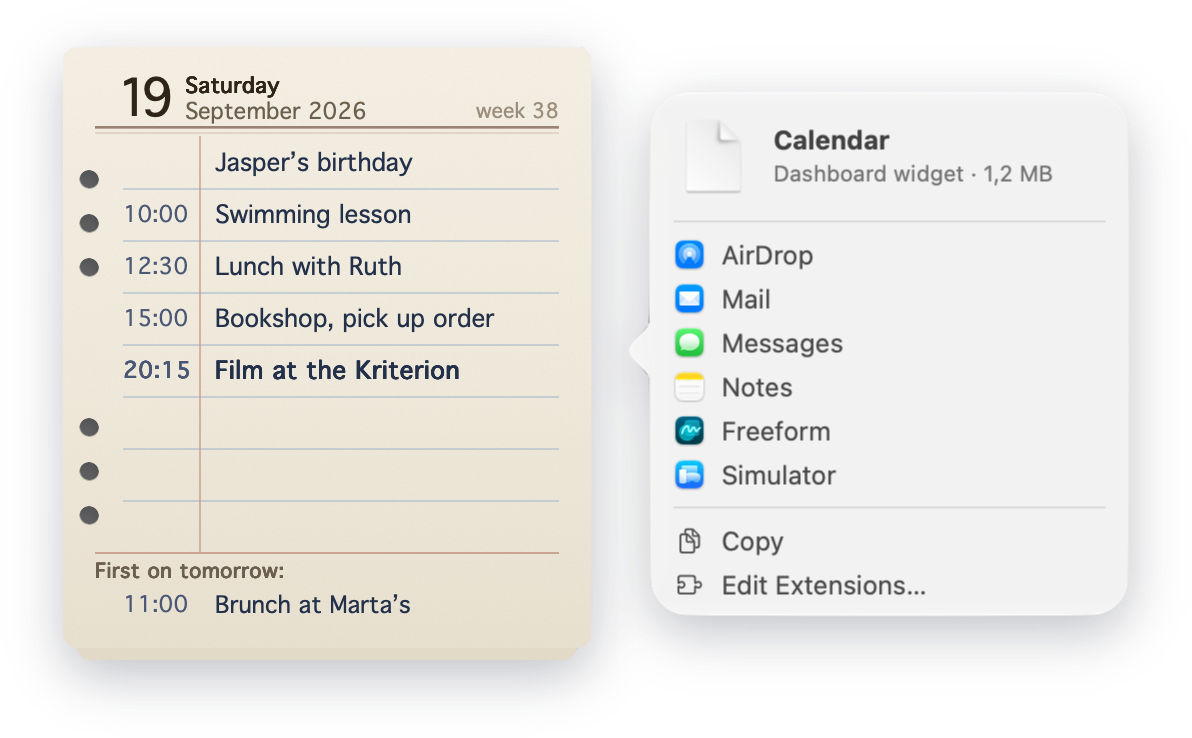
Right-click or press Control ⏎ on a widget for these sharing choices:
| Copy Screenshot | Puts a picture of the widget on the pasteboard. |
| Save Screenshot… | Saves the picture as a PNG file. |
| Share Screenshot… | Sends the picture with AirDrop, Messages, Mail or another app. |
| Share Widget… | Sends the widget file itself, so someone else can install it. |
Permissions
Widgets can read some personal data and use services provided by your Mac. Not all combinations are allowed, which helps to preserve privacy.
Widgets can only access data when they are placed on the decor.
Installation prompt
When you install a new widget, a prompt is shown that lists all the access it requests to your personal data and other access. Review the prompt carefully. When you continue installing the widget, it will be placed on your decor and immediately get the access as it was listed in the prompt. You can uninstall widgets in Décor Settings.
Built-in widgets
As an example we discuss the two built-in widgets that access personal data.
- Calendar reads your macOS calendar and displays the appointments, but can't access the internet. Décor enforces this this limit for all widgets that can access the calendar.
- Weather gets your location and sends the coordinates to request a weather forecast. Décor makes the location imprecise, but still within 10km of the location that macOS reports (any widget with internet access can get this imprecise location).
Unlike with other widgets, you are not asked to confirm the installation of built-in widgets. However, when you deny location and calendar access to Décor, built-in widgets will not be able to use these either. Weather will work just fine without this access: you can search a location by name, too.
Rules
The following rules are applied to all widgets:
- For any widget installed separately (not built-in), you will be prompted with a list of requested access, and you can still cancel the install before the widget is loaded.
- Access to personal information cannot be combined with internet access or other outside communication, so widgets can not unwittingly leak that information. The only exception is location information, but then it's typically a few km from your real location.
- Invalid combinations of access will be removed automatically. The widget can still be reviewed and installed by you, but it will not get all the access it requests. This will be shown during installation.
- Widgets cannot access each other's data or communicate with one another via Décor. Widgets that have internet access can always communicate externally, but get no access to personal data from your Mac.
Settings
Choose Settings… from the menu bar item. The settings window has three tabs.
General
- Start Décor at login starts Décor automatically, which means that it's always available to open.
- Focus follows pointer automatically focuses any widget where that you hover with the mouse pointer, so you can type in it without clicking first.
- Background allows choosing Darkened desktop, Frosted glass or Wallpaper. The wallpaper mode does not support dynamic wallpapers, nor can it load wallpapers that are stored in a personal directory.
- Décor key is the key that shows and hides the decor: F12, or on a Mac with Apple silicon (M1 or later) the 🌐︎ key. Both options have advantages and disadvantages. Try out what works best for you. To use the 🌐︎ key, you need to disable its use for other functions in System Settings.
- The buttons Show Welcome and Clear Cache are generally never needed, but it's not dangerous to press them when you're curious.
Permissions
The second tab shows whether Décor may use your Calendars and Reminders, your Location, your Contacts and Shortcuts and pass on access to individual widgets. Some widgets need Décor to provide this access to function correctly. See Permissions.
Widgets
The third tab lists the installed widgets. Use it as an alternative way to add widgets to the decor. This is also where you can uninstall widgets that you do not use anymore. It is not possible to uninstall the widgets that come packaged with Décor.
Keyboard shortcuts
| F12 or 🌐︎ | Show or hide the decor (the Globe key needs a Mac with Apple silicon and is an option in Settings). |
| Hold F12 | Show the decor until you let the key go. |
| ⌘ = | Open or close the widget bar. |
| Hold Option | Show the close buttons, and drag widgets. |
| Control | Highlight the widget that has keyboard focus. |
| Control Tab | Move focus to the next widget. |
| Control Shift Tab | Move focus to the previous widget. |
| Control ⏎ | Show the pop-up menu for the focused widget. |
| Tab | Move focus to the next input field inside a widget (this includes buttons and other controls if "Keyboard navigation" is on in System Settings). |
| Option Tab | Move focus to the next item inside a widget, including buttons and other controls, and also the close button. |
| ⌘ R | Reload the widget that has keyboard focus. |
Troubleshooting
F12 changes the volume
Try pressing the combination Fn F12, or change the function key setting described under Settings. Clicking the gauge in the menu bar should always work.
A widget is empty or shows an error
Reload it first. If it is a classic widget, the service it depended on may be gone. If it uses your calendar, location or contacts, check the Permissions Tab of Settings.
When I click, the decor is dismissed
Any click between widgets or on transparent parts of widgets will close the decor immediately.