APIs for accessing data and services
Décor provides widgets with carefully specified access to the system and to the outside world. A widget might read the calendar, data from the address book or the location of the Mac, run shortcuts, or use an on-device language model. These APIs are accessible from JavaScript code in the widget.
Some lightweight APIs are always available to all widgets. For example,
getting information about the computer's region settings is provided
via widget.localeInfo, geocoding addresses via
widget.location.nameSearch, and zooming widgets to fullscreen can be
done via widget.zoom.
Other APIs are only available to widgets on request, and must be confirmed by the user before they are installed. Additionally, while some APIs may be combined in a single widget, various combinations are disallowed. Below, we describe the APIs and the rules for accessing them from a widget.
Info.plist keys
The file Info.plist is a text-based property list that defines some basic
properties of the widget. A basic example is in the Design
guide. You can use wck validate to check the names
and types of properties in your widget.
MainHTML(string, required)- The filename of the widget HTML page.
CFBundleIdentifier(string, required)- A name written backwards like a domain. One installed copy per identifier.
CFBundleDisplayName(string)- The name shown in the widget bar. Falls back to
CFBundleName. CFBundleName(string)- A short name.
CFBundleVersion(string)- The version.
Width(number)- Initial width of the widget in points. If
WidthorHeightis unspecified, the size ofDefault.pngis used. Height(number)- Initial height of the widget in points. If
WidthorHeightis unspecified, the size ofDefault.pngis used. AddShadow(boolean)- Requests a drop shadow for the widget. The default is off, because older widgets usually have a shadow embedded in the background image.
BackLayout(string,ScaledorResponsive)- When
Scaled, the back is changed together with the front when the user scales the widget. WhenResponsive, the back gets the same size, but the content is not scaled. The CSS should provide a responsive layout in that case. CloseBoxInsetX(number)- Defines where the close button is placed on the widget. If
CloseBoxInsetXCloseBoxInsetYisn't provided, the default is top-left. CloseBoxInsetY(number)- Defines where the close button is placed on the widget. If
CloseBoxInsetXCloseBoxInsetYisn't provided, the default is top-left. NetworkUserAgentSuffix(string)- Text added to the
User-Agentof the widget's requests. See The User-Agent. Fonts(string array)- Font files are loaded and made available in CSS under their known name(s). Always check if the font license allows inclusion in widgets.
Capabilities
A widget is effectively a program "someone else" wrote, running on a user's personal Mac. You, as the writer of the widget, have a responsibility to your users to make sure that sensitive data is kept private. Décor does part of the job, by defining access rules that are applied to all widgets. For example, widgets that get access to the macOS Calendar will not be allowed to access the internet.
Supported capabilities
AllowNetworkAccess- Provides access to
fetchandXMLHttpRequestfor public web addresses. All requests are routed through the decor engine, which can throttle based on request frequency or size. Network access cannot be combined with capabilities that provide access to personal data. AllowLocalNetwork- Provides access to
fetchandXMLHttpRequestfor devices on the local network, such as a router, a printer or a home server, overhttporhttps. Public web addresses and the Mac itself (localhost) cannot be reached. Local network access cannot be combined withAllowNetworkAccess, with Shortcuts, or with capabilities that provide access to personal data, location included. See Local network. AllowShortcuts- Provides access to macOS Shortcuts via
widget.shortcuts. This only works if Décor has been granted access. Access to Shortcuts cannot be combined with capabilities that provide access to personal data. AllowCalendar- Provides access to macOS calendars and reminders via
widget.calendar. This only works if Décor has been granted access. AllowContacts- Provides access to macOS contacts via
widget.contacts. This only works if Décor has been granted access. AllowLocation- Provides access to the current location via
widget.location. This only works if Décor has been granted access. If combined withAllowNetworkAccessthe actual location is not used, but a nearby location is provided to the widget (somewhere between 0 and 10km from the current location). AllowSystemMetrics- Provides access to system metrics like processor, memory, disk, network and battery via
widget.metrics. AllowLanguageModel- Provides access to the built-in language model in macOS 26 and up, via
widget.chat. AllowKeepAwake- Provides means to keep the display awake via
widget.keepAwake. This capability cannot be combined with other capabilities. AllowInternetPlugins- Lets the widget play Flash movies. Décor does not support other internet plugins. Flash movies in or
To request one of the supported capabilities, add the appropriate key to the
widget's Info.plist. Upon install, the user will see a list of capabilities
that Décor can provide to the widget. It's up to the user to decide on
continuing with the install.
For example, a Weather widget probably wants to use the network to communicate
with a weather API, and may base the forecast on the computer's reported
location. Hence, it will request both AllowNetworkAccess and AllowLocation,
as shown here:
<?xml version="1.0" encoding="UTF-8"?>
<!DOCTYPE plist PUBLIC "-//Apple//DTD PLIST 1.0//EN"
  "http://www.apple.com/DTDs/PropertyList-1.0.dtd">
<plist version="1.0">
<dict>
  <key>CFBundleIdentifier</key>
  <string>nl.stgm.weather-today</string>
  <key>CFBundleDisplayName</key>
  <string>Weather Today</string>
  <key>MainHTML</key>
  <string>weather.html</string>
  <key>AllowNetworkAccess</key>
  <true/>
  <key>AllowLocation</key>
  <true/>
</dict>
</plist>
Combining capabilities
A widget that requests invalid combinations of capabilities will still be
offered for install, but only gets a specific part of what's requested. You can
check a widget for invalid combinations using wck validate.
Localisation
Add language folders to your widget to provide translated resources.
Users can set preferred languages in their System Preferences, and Décor will look for corresponding language folders in the widget to load the resources. When none are available, or the requested resource is not in the language folder, the main widget bundle folder is tried.
Read the developer documentation to understand language and region codes. Currently, only the language code is used by Décor for loading translations. Do not make folders with region or script codes, because these will not be used.
In your HTML you can refer to a file just like normal: if you have a script.js
in the main folder, it will be loaded. But when you provide a language-specific
folder that matches a language set in system preferences, and script.js is
present there, too, that version is loaded instead.
One common pattern is to provide a localizedStrings.js that defines
translations for all strings in the widget. Loading that script from the widget
will automatically provide the translated version. Here's what a basic widget
folder with translations could look like:
Tides.wdgt/
  main.html              <script src="localizedStrings.js">
  en.lproj/localizedStrings.js
  nl.lproj/localizedStrings.js
A localizedStrings script could look like this:
var localizedStrings = new Array;

localizedStrings['Hello, World!'] = 'Hallo, Wereld!';
Note that the widget name, as presented in the widget bar and other places,
cannot be translated in the same way. InfoPlist.strings is not supported.
Events
Widgets can define handlers for the following events:
window.onfocus(note the use ofwindowhere)- The widget gained keyboard focus.
window.onblur(note the use ofwindowhere)- The widget's focus is lost.
widget.onshow- The widget became visible, together with the decor.
widget.onhide- The widget was hidden, together with the decor. Use this event to minimize widget activity when it's invisible.
widget.ondragstart- The user started dragging around the widget.
widget.ondragend- The user stopped dragging around the widget.
Preferences
Widget preferences can be stored so they can be reloaded when the computer is restarted or the widget itself is reloaded.
widget.preferenceForKey(key)- Retrieves the stored value for the key, or undefined if not available.
widget.setPreferenceForKey(value, key)- Stores a value by key. Passing
nullas a value deletes the key from storage.
Preferences are typed: for example, a stored boolean value is also retrieved as a boolean.
Examples of using preferences are in the Design guide.
Flip
Widgets can have two sides. Flip the widget over to show a back side.
widget.prepareForTransition(direction)- Provide either 'ToBack' or 'ToFront' and the widget is prepared by making a capture and hiding the live widget. You can then change the widget's appearance.
widget.performTransition()- Starts the actual animation. Halfway through the animation the widget is shown again, revealing its "other side".
Resizing during a flip
The widget's back may have a size that differs from the front. In that case you
can call window.resizeTo or widget.resizeAndMoveTo during the flip.
Call a resize function right between prepareForTransition and
performTransition, and Décor will handle it gracefully. For example:
widget.prepareForTransition('ToBack');
document.getElementById('front').style.display = 'none';
document.getElementById('back').style.display = 'block';
window.resizeTo(320, 260);
widget.performTransition();
A large size difference between back and front is not advisable: the flip animation looks best when back and front have similar sizes.
Centering front and back
If the widget is resized during a flip, front and back will have different sizes. In that case, the widget centers are aligned during the flip, so the other side of the widget appears at an expected location for the user.
Only when widget.resizeAndMoveTo is called during the flip, vertical centering
is omitted, assuming that the widget will coordinate the front and back's
vertical placement carefully. As an example, the Weather widget uses this
to align the front and back panels at their respective tops.
Size and position
Place the close button, resize the widget and adjust it to its content.
widget.setCloseBoxOffset(x, y)- Puts the centre of the close button this many of the
widget's pixels from the top left corner of its web view. It overrides
CloseBoxInsetXandCloseBoxInsetYin theInfo.plist, which set the same thing at load. A widget with neither has the button centred on its top left corner. Calling it without two numbers puts the button back there. widget.setPositionOffset(x, y)- is accepted and stored, and nothing is placed by it.
Décor reads where a widget draws inside its viewport from
Default.pnginstead. Do not use it in a new widget. window.resizeTo(w, h)andwindow.resizeBy(dx, dy)- Resize the widget on the decor, growing it downward and to the right. The size is not stored across launches; the top left corner is.
widget.resizeAndMoveTo(x, y, w, h)- Does both at once, which is how a widget grows the other way: upward, or leftward under a resize handle on its left edge. The point is where the widget wants its top left corner, in the coordinates
window.screenXandwindow.screenYare read in.
Those two report the widget's own position, measured from the decor's
top left going down. window.screen reports the decor's size in the
same pixels, so screen.height - (screenY + innerHeight) is the room
below the widget. The decor covers its display whole, menu bar included,
and all of it is available, so the avail values are the same size and
availLeft and availTop are 0. The position, innerWidth and
innerHeight, the size asked for, and a mouse event's screenX and
screenY are all in the widget's own pixels, whatever magnification
the widget is shown at. A difference in heights, or a distance the
pointer moved, can be added to the position as it is:
widget.resizeAndMoveTo(window.screenX - grown, window.screenY,
                       window.innerWidth + grown, window.innerHeight);
Resizing for changed content
When loading a new artwork in a widget, you want to change the image and at the
same time adapt the widget size for the new proportions. Now, if either is done
separately from the other, the widget will look off for a split second. To
prevent this, call widget.prepareForResize():
widget.prepareForResize();
balloon.style.display = 'block';
widget.resizeAndMoveTo(x, y - extra, width, height + extra);
Décor covers the widget with a picture of how it looks now. The picture
stays in place on screen and is removed once the page has painted at its
new size and has loaded every image it shows, or after 0.35 seconds. It
works like prepareForTransition does for turning the widget
around.
- It works without a resize too, for example to swap the art in a CSS background.
- Calling it again while the picture is shown keeps the same picture, until the page has painted after the last call.
- It does nothing during a flip, while the user resizes the widget, or
while
Default.pngis shown. - Right after a resize call,
innerWidthandinnerHeightstill have the old values. Work out the new size before you call.
Zoom
Widgets can zoom to cover the screen, which is especially useful for displaying art and design. When a widget is zoomed, the decor is dimmed.
widget.zoom.start()- Starts the zoom. Zooming in only works as a result of user interaction, i.e. mouse click or key press.
widget.zoom.isZoomed()- Reports whether the widget is zoomed.
widget.zoom.onchange- Set this to a handler that receives a
zoomedparameter with the zoom state (trueorfalse).
How zoom works
Widgets can't be interacted with while zoomed. Use onchange to detect the actual zoom state and make sure that interactive elements (like info buttons) are hidden as appropriate.
Zoom is automatically ended when:
- The pointer is clicked anywhere in the widget or the surrounding decor.
- The Esc key is pressed.
- The decor is hidden.
- Functions like
resizeToandresizeAndMoveToare called.
Pop-up menus
Show a standard macOS pop-up menu. The user must make a choice before continuing, or dismiss the menu. The main advantage of a pop-up menu is that it isn't constrained by the widget dimensions.
widget.createMenu()- Creates a menu object.
menu.addMenuItem(title)- Append an item to the menu object.
menu.addSeparatorMenuItem()- Append a separator to the menu object.
menu.popup(x,y)- Show the popup menu at coordinates (x,y). The response can be
awaited. The response is the index of the chosen item, or -1 when the menu is dismissed without making a choice.var menu = widget.createMenu(); menu.addMenuItem('Celsius'); menu.addMenuItem('Fahrenheit'); menu.addSeparatorMenuItem(); var chosen = await menu.popup(x, y);You can provide a callback function instead of using
await:menu.popup(x, y, (index) => { ... });
Links
Open a web page or another application from the widget.
widget.openURL(url)- Opens a
https:orhttp:page in the default browser, or amailto:address.widget.openURL('https://www.knmi.nl/'); widget.openApplication(bundleID)- Opens an application.
widget.openApplication('com.apple.iCal');
Opening a link works only right after a click or key press in the widget.
Locale
Read the number, date and unit formats the user has set for their region. Normally, web pages only have access to language settings, which do not correspond 1:1 with user preferences for regional settings. Use these functions together with the web Internationalization API.
widget.localeInfo.decimalSeparator- Provides the character to be used between the whole and fractional part of a number. Example:
",". widget.localeInfo.groupingSeparator- Provides the character to be used between groups of digits in a large number. Example:
".". widget.localeInfo.usesTwelveHourClock- Is
truewhen the region shows time with AM and PM, andfalsefor a 24 hour clock. widget.localeInfo.usesMetricUnits- Is
truewhen the region uses metric units, such as degrees Celsius and kilometers, otherwisefalse. widget.localeInfo.firstDayOfWeek- Provides the number of which day should be considered to be the first day of the week: 1 is Monday, 7 is Sunday.
widget.localeInfo.region- Provides the region code. Example:
"NL". widget.localeInfo.currency- The currency code of the region. Example:
"EUR".
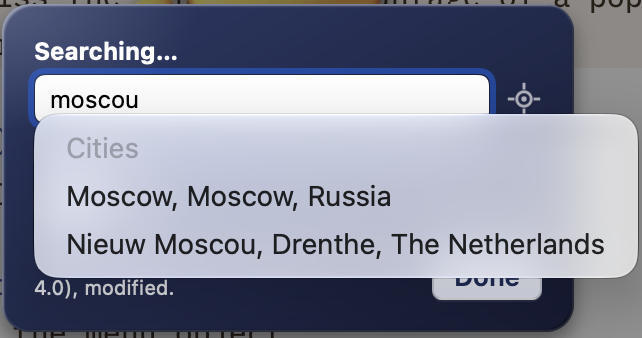
Place search
Look up a place by name to get its coordinates and time zone.
widget.location.nameSearch()- finds places by name
widget.location.nameSearch('den haag', (places, error) => {
  ...
});
The places come from the GeoNames database. The list in Décor contains all populated places with more than 500 people. Up to 8 places are returned from a query.
A single place object can look like this:
{
    name: 'The Hague',
    region: 'South Holland',
    country: 'Netherlands',
    countryCode: 'NL',
    latitude: 52.07667, longitude: 4.29861,
    timeZone: 'Europe/Amsterdam',
    population: 474292
}
The results are ranked:
- Full name matches end up higher in the results, and larger places come before smaller ones.
- Places in the current region get promoted in the results list. The region is
derived from
widget.localeInfo.region. - Text after a comma narrows by region or country:
springfield, illinois,paris, fr. - The list contains aliases for place names, so many alternative spellings will yield correct results.
- An empty query, or one shorter than 2 letters, yields an empty list. A query over 100 characters yields an error.
- It's fine to search as the user types, but implement a short delay (debounce) so the search does not overload the system.
timeZoneis an IANA code and can be used to calculate the time and date in the place.
Shortcuts
Use the Shortcuts connector to start shortcuts, for example to trigger Homekit scenes or to start more complex tasks. You can also integrate more deeply and receive status updates in the widget while the shortcut is running. Shortcuts have access to a rich API and can connect to many macOS applications; that's why Shortcuts can provide a powerful backend for widgets.
widget.shortcuts.list()- List the user's shortcuts. Requires
AllowShortcuts. widget.shortcuts.run()- Runs a shortcut and returns its output. Requires
AllowShortcuts.
Because shortcuts run outside the Décor system, widgets that runs shortcuts do not receive access to personal data. See Combined capabilities.
Listing shortcuts
Call the list function to retrieve a full list of shortcuts. Each entry has
name and id, and optionally folder, subtitle and color (which is a CSS
hex code).
The following code lists the first shortcut's name and ID:
widget.shortcuts.list((list, error) => {
    if (error) {
        return;
    }
    const first = list[0];
    console.log(first.name, first.id);
});
To extract folder names and shortcuts for each, use:
const folders = {};
for (const shortcut of list) {
    const folder = shortcut.folder || '';
    if (!folders[folder]) {
        folders[folder] = [];
    }
    folders[folder].push(shortcut);
}
Running shortcuts, optionally with input
Call the run function to start a shortcut. You can provide either a shortcut
name or an ID. Which one is more useful depends on how your widget will be using
shortcuts.
widget.shortcuts.run('Lights On')
You can find shortcut IDs using the command-line tool:
shortcuts list --show-identifiers
To provide input to the shortcut, call it like this:
widget.shortcuts.run('Timer', { input: '5 minutes' });
Running shortcuts with output
Call the run function, and provide callbacks for onReport, onStop, or
both:
function onTimerReport(value) {
  // process values reported by the shortcut while running
}

function onTimerStop(output, error) {
  // handle error
  if (error) {
    return;
  }
  // process shortcut output
}

widget.shortcuts.run('Timer', {
  input: '5 minutes',
  onReport: onTimerReport,
  onStop: onTimerStop
});
During run, the shortcut may report intermediate status values. The onReport
function's value is a string (which could contain JSON if you would like to
receive structured data).
When the shortcut finishes successfully, the onStop function's output is set
to the text the shortcut returns, or an empty string when it returns nothing,
and error will be null. In case of a failure, output is null and error
is a message. Check error first.
For more information on how the shortcut should send reports and output values, see the next section.
We do not use anonymous functions in our example code here. Widgets are event-driven, and it's a fine style to define several event handler functions to group core functionality.
Configuring the shortcut
For shortcuts to send reports back to the widget while running, the shortcut must first receive a token as input. This token is then sent back to Décor together with each report.
- If
onReportis set when running the shortcut from JavaScript, the shortcut will receive a JSON object with two keys:tokenandinput. - In the shortcut, use Get Dictionary from Input to decode the JSON, then
Get Dictionary Value for the key
token. - When the shortcut has something to report, use Report Back to Décor. Set
Tokento the token from step 2, andValueshould be a string. - Décor automatically calls
onReport(value)in the widget that started the shortcut.
The token is only valid for a single run. If the token is not passed with
Report Back to Décor, the shortcut stops with an error.
Limits
- A shortcut that was not started from Décor has no token, so it cannot report back to a widget.
- Décor cannot see which shortcut reports back. If the token is passed around, any shortcut could send a message.
- Reports are accepted until the shortcut stops. After
onStophas been called, the token is no longer valid.
Web services
Note: widgets should include most of their assets (images, static data) in the widget bundle download. That's why you can't just reference online images in your HTML. Network access, as described here, is for providing live data.
Widgets can access public web services. Although you can use standard fetch()
for this, the request is intercepted and sent by Décor, and some limits are
imposed on network use. Required key: AllowNetworkAccess.
fetch()- Retrieve a response from a web service. Use like the normal fetch API.
var response = await fetch('https://api.example.com/tides?station=hvh'); var tides = await response.json(); XMLHttpRequest- Retrieve a response from a web service, synchronously. This is a deprecated way to connect to services. Use it like a normal XMLHttpRequest.
Décor sends HTTP requests to web services on behalf of the widget, and CORS is not applied.
Images, audio and video
Widgets can't load assets directly from the web. It's very much intended that widgets include everything that is needed to function, with the exception of live data. Assets to be included with a widget are, for example: images, style sheets, fonts and scripts.
There is some support for online assets, because you can convert a binary asset to an object URL and display that:
  var response = await fetch(item.imageURL);
  image.src = URL.createObjectURL(await response.blob());
Loaded data does have a limit of 16MB for a single request. Streaming and media elements generally do not work.
Limits
- https only. An
http://address is fetched over https, and a site without https cannot be reached. - No local network:
localhost,.localnames and private addresses are refused, so a widget cannot talk to a router, a printer or a server on the Mac. - No cookies, so services that need a normal user login cannot be used.
An API key or token works, in the address, in an
Authorizationheader or in a header of the service's own. Décor stores none: keep it withwidget.setPreferenceForKey. - Per widget: 60 requests a minute (10 at once in a burst), 4 at a time,
16 MB per response, 1 MB per request body and 50 MB an hour. Over a
limit the answer is
429or413, and the console says why. Requests wait while the decor is hidden. - No WebSocket, no WebRTC, and no pages from other sites in a frame.
When Décor itself answers 429 for one of these limits, the answer has
Retry-After: 60. A Range header is passed on, and a partial answer comes
back, but every request counts against the limits.
Widgets must respect a 429 status by waiting for the retry window to pass.
Ideally, prevent 429 status responses, because widgets should not cause a lot
of traffic anyway.
Request headers
Décor sends the headers the widget sets, with these exceptions:
Cookie,Proxy-Authorization,OriginandRefererare not sent, andSet-Cookieis not returned.User-Agentis set by Décor (see "The User-Agent"); the widget cannot change it.Host,Content-Length,Connection,Keep-Alive,Transfer-Encoding,Upgrade,TE,Accept-Encodingand anySec-…header are set by the system and not taken from the widget.- A header whose value contains
widget:is not sent. Authorizationis sent as the widget sets it. An API key or token works in the address, in anAuthorizationheader or in a header of the service's own. Décor stores none: keep it withwidget.setPreferenceForKey.- A request with headers other than
Accept,Accept-Language,Cache-ControlandPragmais not answered from the cache and stores nothing.
The User-Agent
Décor sets the User-Agent of a widget's requests, and the page cannot
change it. It has the form Name/Version (identifier; suffix), for
example WeatherToday/1.2 (nl.stgm.weather-today; martijn@stgm.nl). The
name and version come from CFBundleDisplayName and CFBundleVersion,
keeping letters, digits, ., _ and -. The suffix is the
NetworkUserAgentSuffix key and is left out when the widget has none.
The string says nothing about Décor, the Mac or the user.
Set NetworkUserAgentSuffix for a service that asks who is calling: a
contact address or a web page. It takes 1 to 100 printable ASCII
characters, without parentheses. Without AllowNetworkAccess it has no
effect.
Caching
Décor stores the answers to fetch and XMLHttpRequest the way a
browser does, so a widget needs no caching code.
- The server decides how long an answer is fresh:
Cache-Control:
max-age
, orExpiresagainstDate, lessAge. Décor never uses an answer for more than 24 hours, whatever the server says, and drops one after 7 days. - A fresh answer is returned without a request. A stale one is checked
with the server (
If-None-Match,If-Modified-Since), and an unchanged answer is returned as a200with the stored body. Neither counts against the limits above, unless the server is asked. - A request that sends its own
If-Modified-SinceorIf-None-Match, aRange, a method other than GET, or any header besidesAccept,Accept-Language,Cache-ControlandPragma, is not answered from storage and stores nothing. The widget gets what the server said, a304included. cache: "no-cache"and"reload"skip what is stored and store the new answer.cache: "no-store"neither reads nor stores.- Stored:
200,203,301and308answers of up to 4 MB, when the server gave a lifetime or a validator (ETag,Last-Modified). Not stored:Cache-Control: no-storeorprivate, and answers that set a cookie. - Each widget has its own entries, on disk, shared by its placed copies and stored across restarts. No other widget can see them. A widget's share is 20 MB and the whole cache 100 MB; the oldest entries go first. They are deleted with the widget, and Clear Cache in the settings deletes all of them.
- Pictures, style sheets and other files the page loads without
fetchdo not go through Décor and use the web view's own cache.
The cache is a courtesy to the server and can be cleared at any time.
Store what the widget must have, such as the last forecast to show
offline, with widget.setPreferenceForKey.
Local network
Widgets can connect to devices on the local network, like a printer or a home
automation server. It's not possible to combine local network access with
internet access. Required key: AllowLocalNetwork.
Use fetch() and XMLHttpRequest as described for web services, above.
  var response = await fetch('http://192.168.1.3:8123/api/states');
  var states = await response.json();
The first ever local request in Décor will show a macOS prompt to allow to "find devices on local networks". Users may or may not enable this, but more important is to display a good default state when there is no access, and check on startup whether access has been allowed.
What can be reached
- Private addresses (
10.x.x.x,172.16.x.xto172.31.x.x,192.168.x.x), link-local addresses (169.254.x.x,fe80::),100.64.x.xto100.127.x.x(as Tailscale uses) and IPv6 addresses starting withfcorfd. - Any other address on the same network as the Mac, such as the public IPv6 address a device gets from the router.
- Names of one label (
nas) and names ending in.local,.lan,.internalor.home.arpa, when every address they resolve to is one of the above. Other names are refused without being looked up. httpandhttps. A device's self-signed certificate is not accepted, so usehttpfor such a device.- WebSocket is supported.
Limits
- No internet: public addresses and other names are refused, also after a redirect.
- Not the Mac itself:
localhostand127.0.0.1are refused. The Mac's own address on the network works. - Pictures, style sheets and media that the page loads without
fetchonly load from an IP address or a.localname. A picture fromnas.lanis blocked; fetch it and show it withURL.createObjectURL. - The rest is as for
AllowNetworkAccess: no cookies,Authorizationis sent, the same User-Agent, cache and limits.
Calendar & Contacts
Read events and reminders from the Calendar and search the user's contacts.
widget.calendar.events(numberOfDays, callback)- Events from today on, for the number of days given. Requires
AllowCalendar.widget.calendar.events(2, function (events, error) { ... });Each event has
title,start,end,allDay,location,calendarandcalendarColor.startandendare ISO 8601 strings. widget.calendar.reminders(includeCompleted, callback)- Reminders, with or without the completed ones. Requires
AllowCalendar.widget.calendar.reminders(false, (items, error) => { ... }); widget.contacts.search(query, callback)- The people whose name matches the query. Requires
AllowContacts.widget.contacts.search('Anna', (people, error) => { ... }); widget.contacts.all(callback)- Everyone in the address book. Requires
AllowContacts.widget.contacts.all((people, error) => { ... });
Location
Get the current location of the Mac. Requires AllowLocation.
widget.location.current(callback)- Get the current location asynchronously.
widget.location.current((place, error) => {
  ...
});
The
placeincludeslatitude,longitudeand a place name when one is available.
macOS asks the user once. Location is the one piece of personal data
that combines with AllowNetworkAccess, so a widget can fetch something
for where the Mac is.
System metrics
Read metrics for processor, memory, disk, network and battery.
widget.metrics(callback)- Processor, memory, disk, network and battery figures. Requires
AllowSystemMetrics.widget.metrics((m, error) => { ... }); m.cpu.usage- Processor usage.
m.memory.pressure- The kernel's memory pressure from 0 to 100, the signal behind the Activity Monitor graph. Use it for gauges and alerts.
m.memory.pressureLevel"normal","warning"or"critical", matching the green, yellow and red of the Activity Monitor graph. Use it for gauges and alerts.m.memory.usedPercent- The share of memory that is active, wired or compressed. A high percentage is normal.
m.disk.free- The free space on the disk.
m.network.receivedPerSecond- The network speed for received data, measured since the previous call. Call
widget.metricsat the interval you want to show, and only while the decor is up. m.battery.percent- The battery charge. Only present on a Mac with a battery.
Language model
Widgets can use the built-in language model in macOS by providing a prompt and
waiting for a completion. Requires AllowLanguageModel, and it works from macOS
26 onwards.
widget.chat.available()- Returns whether the model can be used on this Mac. Check it every time the widget is shown (
widget.onshow) because it may be turned off and on.The answer is an object. It is
{ available: true }when the model can be used, and{ available: false, reason: '...' }when it cannot. Thereasonis a string from a fixed set. Compare it in code and write your own message for the user:deviceNotEligible: this Mac cannot run the model.appleIntelligenceNotEnabled: Apple Intelligence is turned off in System Settings.modelNotReady: the model is still being downloaded or prepared. Check again later.unsupportedSystem: the Mac runs a macOS version before 26.unavailable: the model cannot be used for another reason.
var state = widget.chat.available(); if (!state.available) { // state.reason says why } widget.chat.session(...)- Starts a "conversation", so each call to
respondand the actual response are concatenated to a transcript. Returns a session.var chat = widget.chat.session({ instructions: 'Answer in one short sentence.' });Within the session, each call to
respondincluded the earlier prompts and answers, so an answer to a follow-up question such as "why?" can be generated. session.respond(prompt, callback)- Asks the model. The answer is returned in the callback.
chat.respond('Will it rain?', (text, error) => { ... }); session.close()- Ends the "conversation". The content is deleted and earlier calls to
respondare cancelled. However, the session object can be used again: the nextrespondstarts a new conversation with the same instructions. Socloseis also the way to start over.
Always close finished sessions you are done with. Widgets can have a maximum of four simultaneous sessions. A long conversation also fills the model's context and then fails, so close the session after some exchanges and carry on in a fresh one.
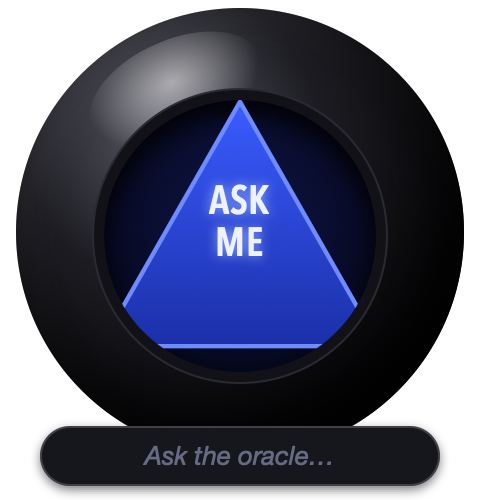
Oracle is a Magic 8-Ball that makes up its answers with the language model. It's not very good.
Keep-awake
Keep the display on as long as this flag is set. Great for giving live demos.
Requires AllowKeepAwake, and you cannot combine it with any other capability.
widget.keepAwake.get()- Returns whether the display is being kept awake by any Décor widget (
trueorfalse). widget.keepAwake.set(on, callback)- Turns Décor keep-awake on or off. Provide a callback to check whether it succeeded. Keep-awake state is shared between widgets, so if multiple are installed they influence each other.
widget.keepAwake.set(true, (on) => {
  ...
});
Décor stores the state, and you can always check using get(), so do not save
your own state in the widget.
Make sure that the widget displays very clearly that keep-awake is on. Décor
will not do it. In case you're wondering whether Décor is keeping the display
on, run pmset -g assertions from the terminal. It should list the name of the
widget that turned it on.
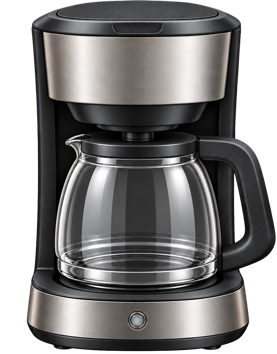
Caffeine keeps the Mac awake as long as the coffee machine is turned on. It's included in the default set of widgets installed with Décor.
Modernizing classic widgets
Décor provides some compatibility with classic widgets by reimplementing some Dashboard APIs. However, many of the ideas developed for Dashboard were eventually added to the Webkit engine and aren't needed anymore. In the chapters above, we have noted changes and suggestions for upgrading widgets. Below are notes for some other APIs.
AppleButton,AppleGlassButton,createGenericButton- Use a button instead:
<button class="widget-glass-button">. AppleInfoButton- Use a
<button class="widget-info-button">to start the widget flip. AppleAnimator,AppleAnimation- Use CSS transitions,
element.animate()orrequestAnimationFrame. AppleScrollArea,AppleScrollbar- Use
overflow: auto, with awidget-scrollbarstyle. If still using AppleScrollArea, note that scroll events are only accepted on the scrolling area and the scrollbar(s), so if anything overlaps that, it needs to havepointer-events:none. AppleSlider- Use
<input type="range">, with awidget-sliderstyle. onsearch,incremental- Until 2023,
input type="search"provided asearchevent, optionally in combination with theincrementalattribute. Both are now unsupported in web views, but Décor reimplements these for compatibility purposes. New and updated widgets should use the standardinputevent for typing, andkeydownto check if Enter was pressed. widget.calculator- This is the engine for the classic calculator widget. It does not exist, but it might be feasible to do calculations directly in JavaScript.
-apple-dashboard-region- Replace this property by
app-regionwhen updating (app-regionis not quite standard yet, but Décor makes ). Also, previously, regions could be combinations of one or moredashboard-region()functions, but this should not be needed in newer applications. Just setno-dragordrag. widget.identifier- In macOS Dashboard, preferences were normally shared by multiple widget instances and could be made widget-specific by using this identifier. In Décor, widgets already never share settings, so using the identifier isn't needed. It's best to clean up code that still implements this idea.
localStorageand cookies- Both are not saved between sessions. Do not use them.
onsync- Widgets settings were synced between Macs in later versions of macOS Dashboard. Décor does not sync settings via iCloud.